Everything SSDHero does
for your drives.
SSDHero reads the health data your drives already keep and tells you, in plain words, how they’re doing, how long they may last and what to do next. Here is all of it, from your Mac’s own SSD to the drive you just plugged in.
Price and requirementsHealth,
in plain words.
One number, one sentence and the next step. SSDHero reads what each drive reports about itself and tells you what it means, so you never have to decode a table of numbers.
A score and a verdict
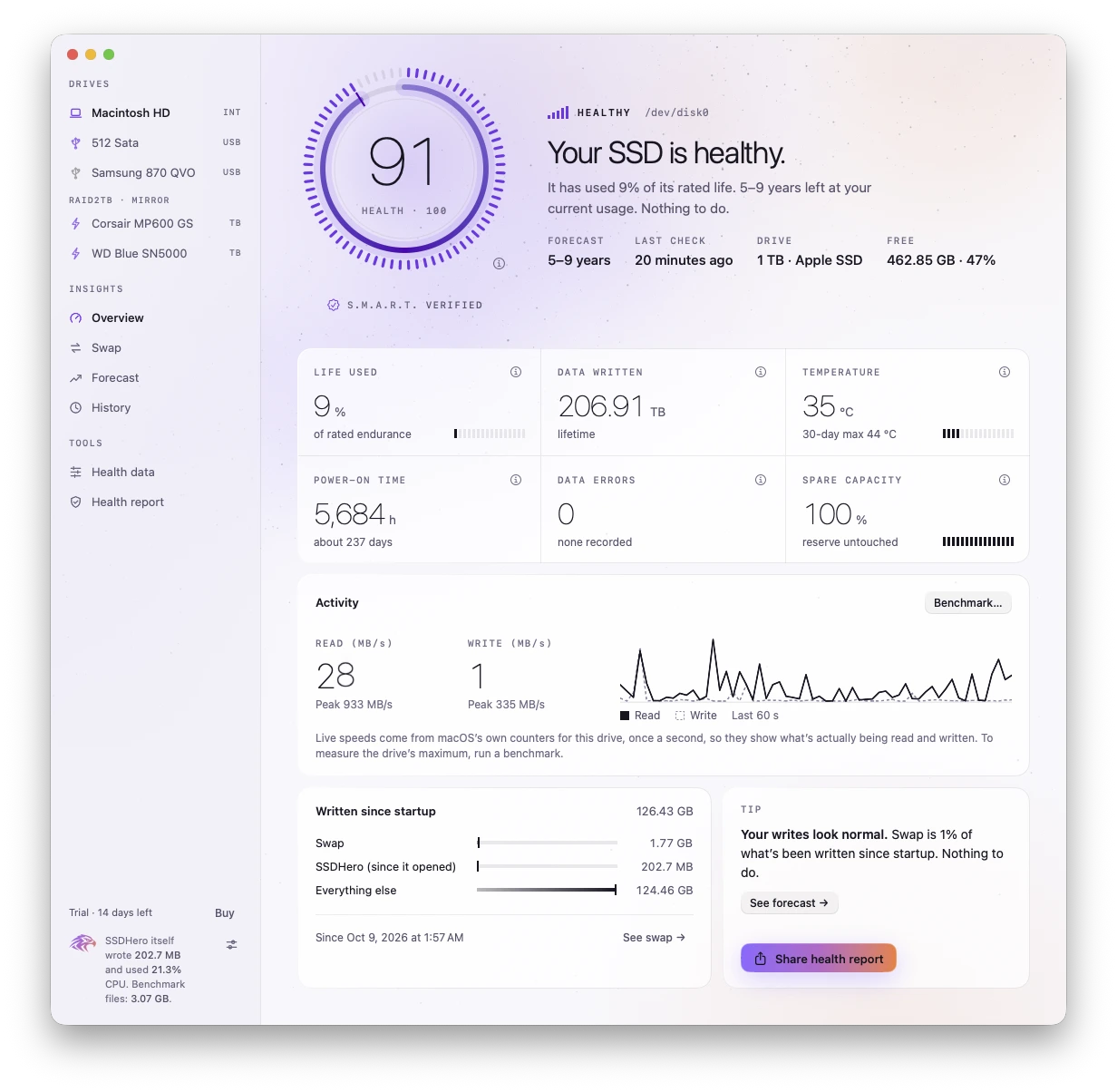
A health score from 0 to 100, and one sentence that says what to do next. Every drive gets a tier, shown by the signal bars, the word and the color together.
- HEALTHYNothing to do.
- WATCHKeep your backups current.
- WARNINGBack it up and plan a replacement.
- FAILINGCopy your data off it now.
- FAILEDCopy what you can and replace it.
- LIMITEDThe drive can’t report its health. SSDHero shows what it can.
How it’s made
Select ⓘ beside the score to see its steps in plain words. It starts from the life the drive has left, can’t be higher than its spare capacity, drops for errors, and is capped when the drive raises a warning.
macOS’s own verdict
Under every score, the drive’s S.M.A.R.T. status as macOS reads it: Verified, Failing, or Not supported when macOS can’t read it through an enclosure. A second opinion on every drive.
The readout
Six figures under the verdict, each with an ⓘ that says what it means.
- LIFE USED OR LEFT
- How much of the maker’s rated write endurance is used, or left. Many SSDs keep working well past it.
- DATA WRITTEN
- Everything written to the drive in its lifetime, as the drive itself counts it.
- TEMPERATURE
- The drive’s temperature now, with the highest SSDHero recorded in 30 days.
- POWER-ON TIME
- Total hours the drive has been powered on.
- DATA ERRORS
- Errors the drive couldn’t correct. Normal is 0.
- SPARE CAPACITY
- Reserve blocks that replace worn ones. 100% means the reserve is untouched.
Health data, in tabs
Everything a drive reports about itself, one click from its Overview. Each drive shows the tabs it has something for.
- Summary
- Drive information: model, serial, firmware, interface, capacity, sector size, power-on time, power cycles and S.M.A.R.T. status, with a count of problems.
- Indicators
- Every health indicator with its status, from the same rules as the verdict.
- The drive’s log
- The NVMe health log or a USB drive’s SMART attributes. For a drive that can’t report its health, the counters macOS keeps.
- Self-test
- The drive’s own short or extended test, with its log, for USB SATA drives macOS reads.
How many years
it has left.
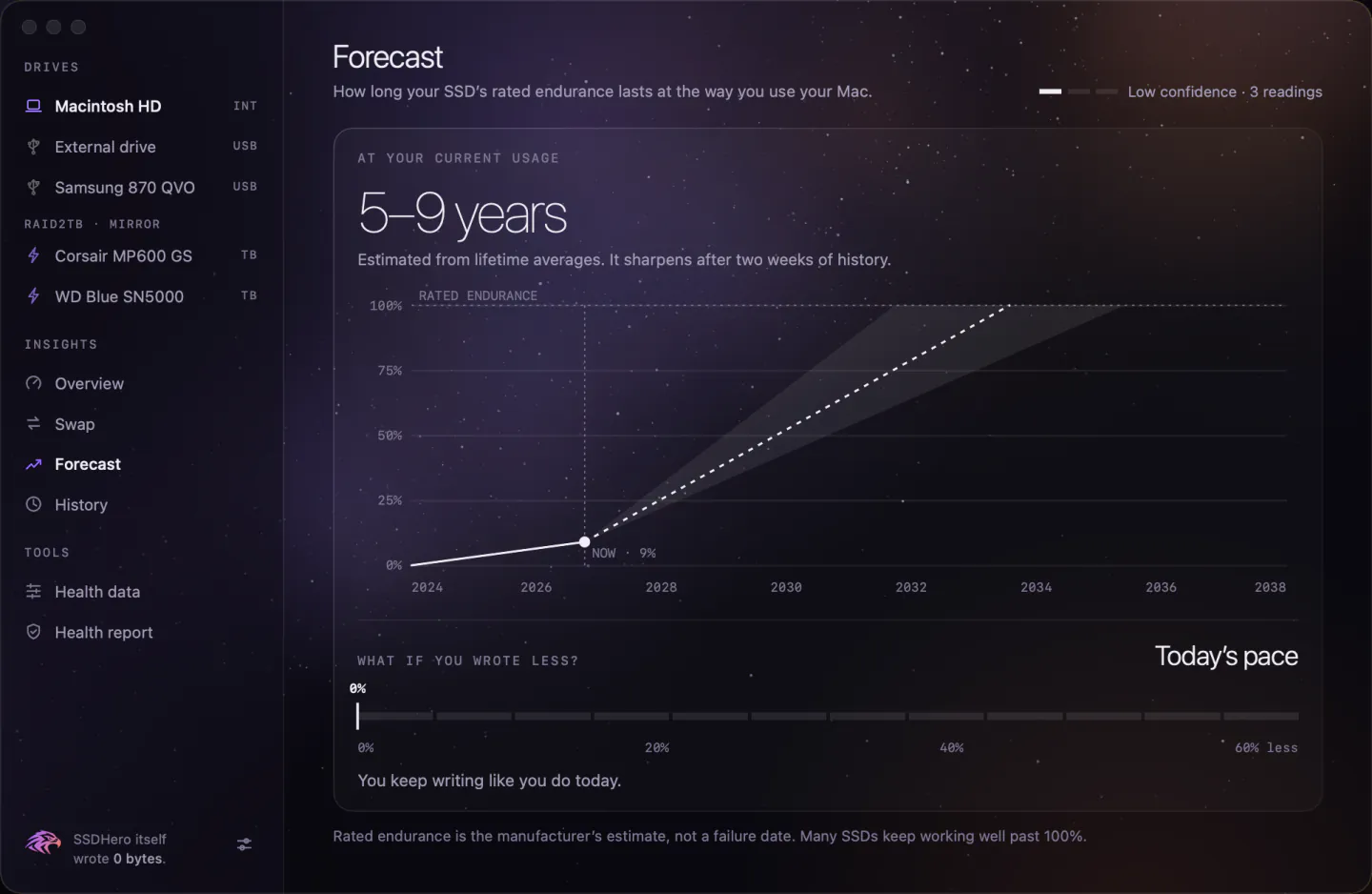
SSDHero turns the drive’s wear and the way you write into a range of years: how long its rated endurance lasts at your pace.
Years left, at your pace
A range of years until the drive reaches its rated endurance, at the rate you write today. Ranges, not false precision: “5–9 years”.
Sharper with your history
At first it uses the drive’s lifetime averages. After about two weeks of your own readings it follows your recent pace, and it always shows how confident it is.
What if you wrote less?
Drag the control to write less and see how many years you’d gain.
A forecast is an estimate of rated endurance, not a failure date. Many SSDs keep working well past it. Keep regular backups whatever it says.
What your Mac writes,
day by day.
Writing is what wears an SSD. SSDHero keeps a record of it, shows where it comes from, and lets you take the numbers with you.
A history you keep
Readings kept for 30, 90 or 400 days, as you choose. A chart of the data written each day, and every reading exported as CSV whenever you want it.
Swap, explained
When your Mac runs short of memory, it writes to its SSD instead. That’s swap. The Swap page shows how much, day by day, with your Mac’s memory pressure and what to do about it.
Written since startup
Everything written since your Mac started, split into swap, everything else and SSDHero itself, so its own footprint is never hidden.
Every drive you plug in,
checked.
Plug in a drive and a card slides in under the menu bar. It checks the drive, shows each step, and tells you in plain words how it is. It writes nothing to the drive.
| Connection | What you get |
|---|---|
| Thunderbolt and USB4 NVMe drives | Full health, read live, and the link the drive really negotiated next to what it supports. |
| USB SSDs and hard drives, on macOS 27 | Full health. Many are read live through macOS; others after a one-time hand-over from the menu bar. |
| USB NVMe enclosures, and USB drives on earlier macOS | The link, live speed and error counters. |
| SD cards | Capacity, free space and errors. |
Thunderbolt and USB4, in full
Full health for NVMe drives, read live, plus the link they really negotiated next to what they support, such as “PCIe 3.0 ×2 (supports 4.0 ×4)”. You see when a drive isn’t getting all it could.
USB drives, on macOS 27
Many USB SSDs and hard drives are read live through macOS, with nothing unmounted. Others you hand to SSDHero once, from the menu bar, and a check then unmounts the drive for a few seconds. Never forced, nothing written.
Self-tests
Start a drive’s own short or extended self-test on USB SATA drives macOS reads. The drive stays mounted and keeps working, and its self-test log is listed.
Hard-drive warning signs
Reallocated, pending and uncorrectable sectors, and spin-up retries: the signs a hard drive gives as it wears. Each one is counted, put in a plain sentence, and weighed in the verdict.
RAID-aware
A mirror’s drives are grouped under their set, with the set’s status, and ejected together.
Eject, and mount again
Eject from the app or the menu bar. The drive then reads “Not mounted · safe to unplug”, and where macOS allows it, Mount again brings it back without unplugging.
Free space, volume by volume
Free space for each volume on a drive. Time Machine backup volumes are recognised and left out of low-space alerts.
Live read and write speed
From macOS’s own counters, once a second, so you see what’s really being read and written.
SD cards
Capacity, free space, and read and write errors for cards in the built-in reader. SD cards don’t share health data with the Mac, and SSDHero says so.
How fast is it,
really?
A benchmark you start yourself. In about a minute you know how fast the drive is, and whether the drive or its connection sets the limit.
A dial with the ceiling marked
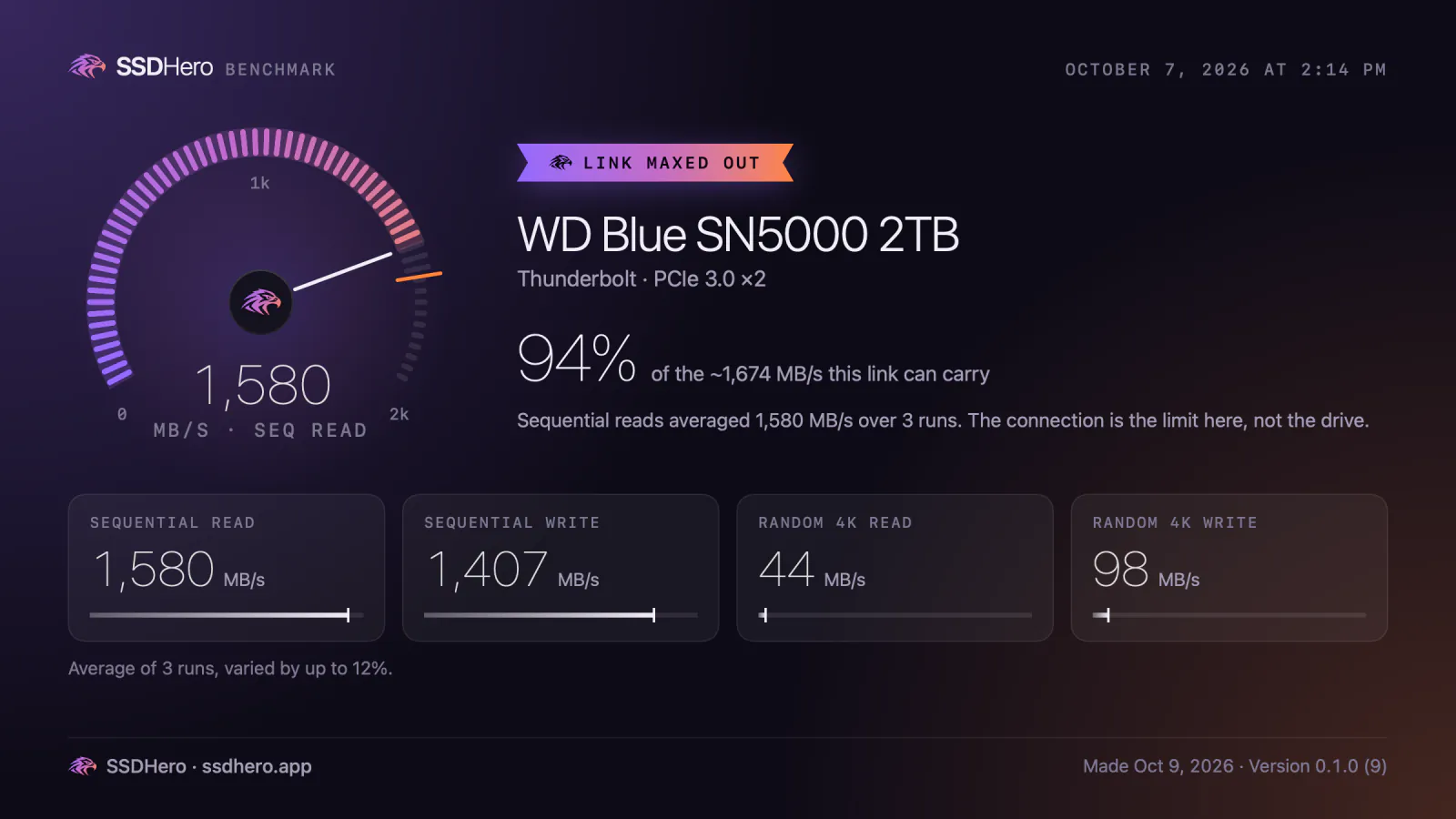
The needle follows each test as it runs, against the most the drive’s connection can carry, marked in orange.
Four tests, three runs
Sequential and random 4K reads and writes, run three times and averaged, with how much the runs varied when it matters.
The drive, or the connection?
The result is set against what the link can carry, so you see how close the drive gets, and which of the two is holding it back.
A finish sized to the result
Max out the link and you get “Link maxed out”. A solid run gets a smaller celebration, a modest one a quiet “Benchmark done.” With Reduce Motion on, just the numbers.
Safe by design
It writes one temporary test file to a volume you pick and deletes it afterwards. It runs only when you start it, and never on a failing drive.
Always
a glance away.
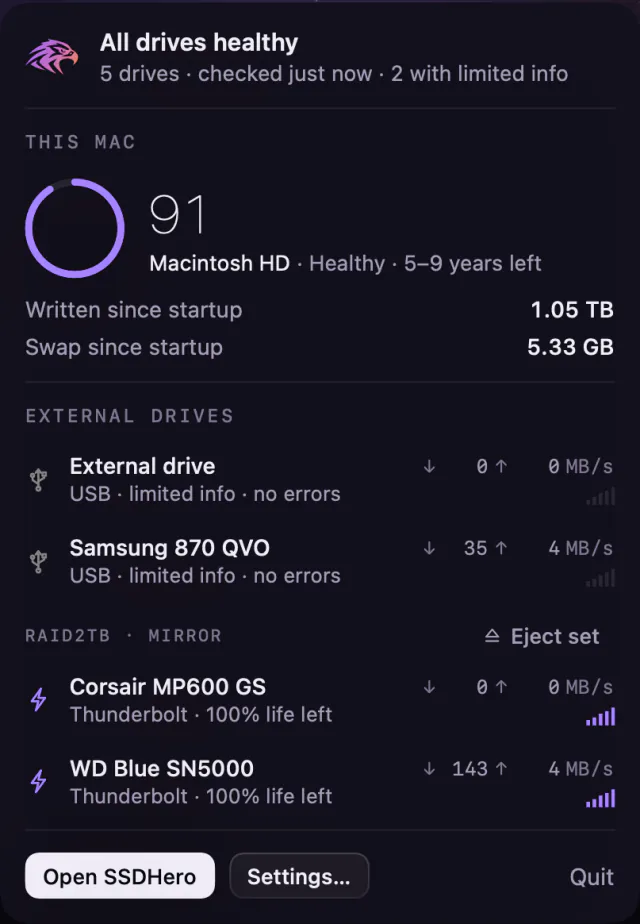
Your Mac’s score sits in the menu bar. Every drive is one click away, and on your desktop if you like.
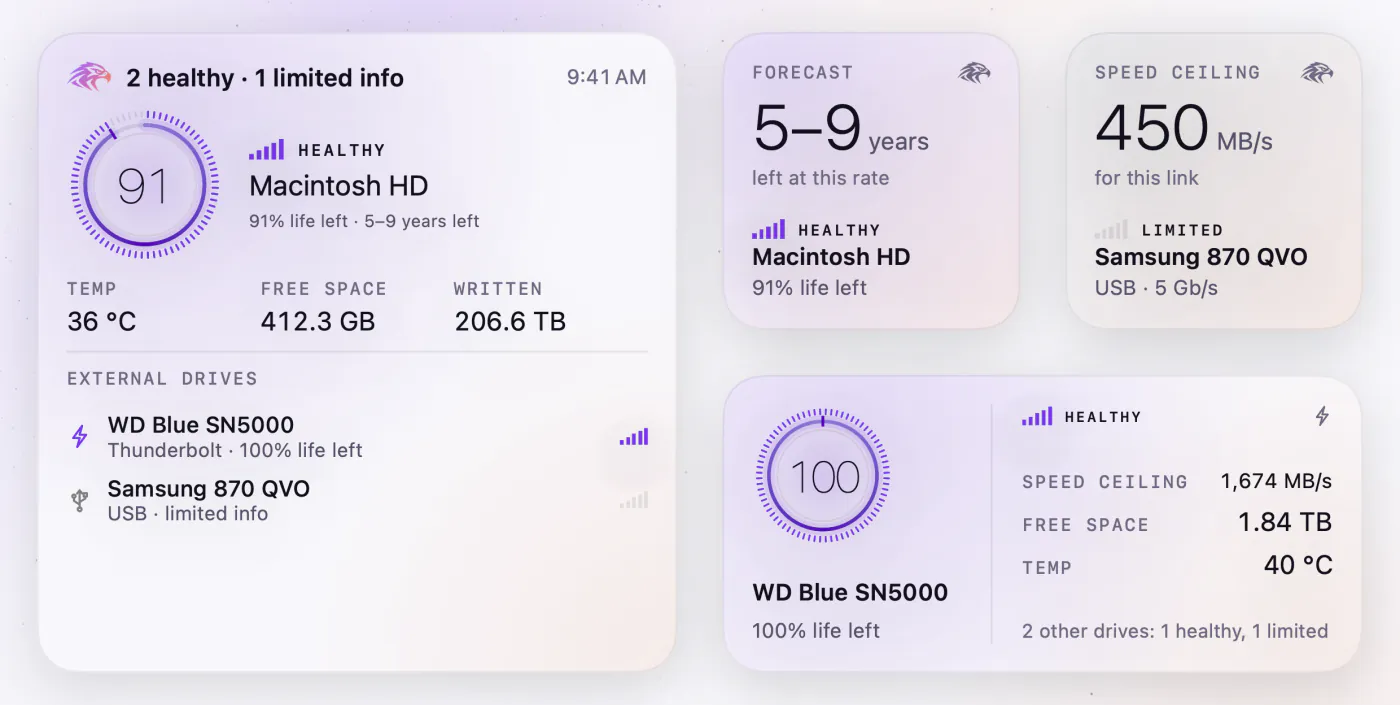
The menu bar panel
The falcon and your Mac’s score in the menu bar, with a ▲ when a drive needs a look. Click it for every drive at a glance, live speeds, and Eject.
Widgets, your way
Small, medium and large desktop widgets. Pick the drive and the stats each one shows, from health score and life left to free space and speed ceiling. Click one to open that drive in SSDHero.
Allow in full color
On macOS 15 and later, when macOS tints your widgets, they can keep their colors, so a failing drive still shows red.
Told when
it matters.
SSDHero stays quiet until there’s something worth knowing. Each notification has its own switch in Settings, so you hear about exactly what you want.
- A drive’s status gets worseON BY DEFAULT
- A drive runs low on space, at the level you setON BY DEFAULT
- A drive you ejected is safe to unplugON BY DEFAULT
- A drive you plugged in has been checkedOFF BY DEFAULT
- A drive runs hotOFF BY DEFAULT
Proof
you can share.
Selling a Mac, buying a used drive or visiting a repair shop? SSDHero puts a drive’s health on the page, and you choose where it goes.
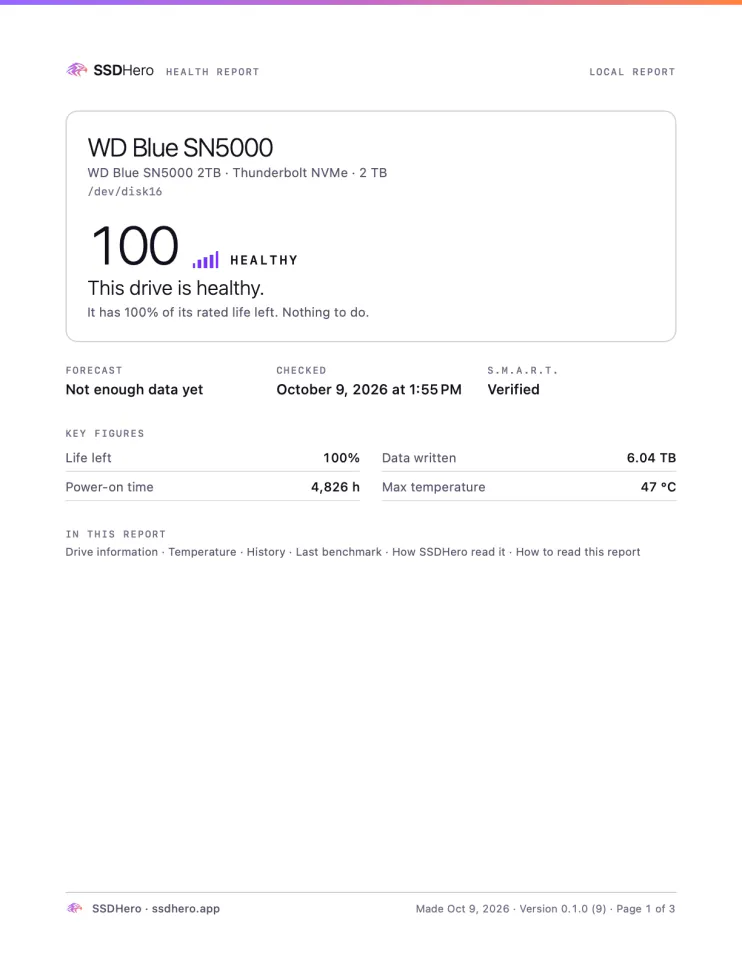
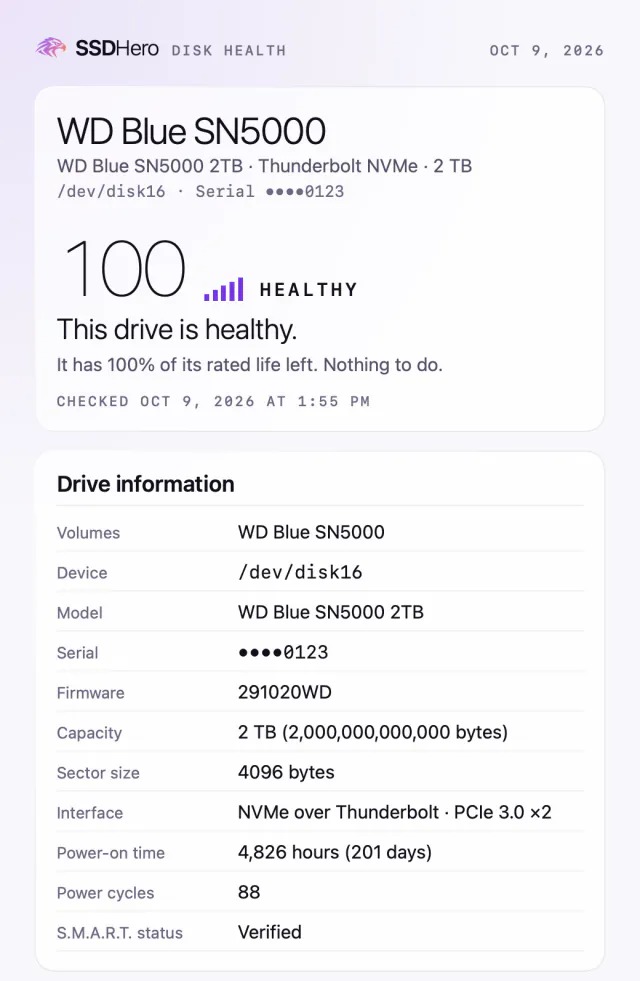
The Health report
A PDF of a few pages for a buyer, a repair shop or your records: the verdict and key figures, drive information, every indicator, the highest temperature in 30 days, SSDHero’s history with the drive and how to read it all. On Letter or A4. Free, even after the trial.
A Disk Health snapshot
The Health data page in one share: a phone-sized image, or a PDF.
A benchmark card
A finished benchmark as an image, with the drive, its link and how close it came to the link’s ceiling.
Your serial number, your call
Only the last few characters of the serial number show, unless you choose to include all of it. Send with AirDrop, Messages or Mail, or Save or Copy.
Private by design.
It reads, and that’s all
SSDHero reads the health data of the drives it checks and never writes to them, except a benchmark you start yourself.
Nothing leaves your Mac
No account, no analytics, and no network connections of its own.
Your history stays yours
Readings stay on your Mac. A report goes only where you send it.
Sandboxed, from the Mac App Store
It runs in the App Sandbox, and its App Store privacy label is Data Not Collected. The privacy notice has the details.
Made for the Mac.
A native Swift app
Designed around macOS: a window when you want the detail, a quiet place in the menu bar the rest of the time.
Void and Lab
Two themes, Void (dark) and Lab (light), or follow your Mac.
Calm motion
Motion only when something changes, and none at all when it’s idle.
Accessible
Support for Reduce Motion and VoiceOver.
Quiet at login
It can open at login, straight into the menu bar, without opening its window.
Try all of it
for 14 days.
Every feature on this page is in the free trial. Questions first? Read the FAQ.
- PRICE
- A free download with a 14-day free trial of everything. Then $9.99, once. No subscription.
- WITHOUT BUYING
- The menu bar status, the alert when a drive gets worse, and the Health report keep working.
- REQUIRES
- A Mac with Apple silicon and macOS 14 or later. Reading a USB drive’s health needs macOS 27.
- STATUS
- In testing now. Coming to the Mac App Store.

Know more. Worry less.
A little clarity goes a long way.